Versions
Every tool gets its first version the moment you save it: New Tool tools start as Published, while Create with AI and Connect a calendar tools start as Draft and stay hidden from the assistant until you publish them. So this page’s status control is visible for a tool from the start, and — together with Enabled — is one of the two things that gate whether the assistant can use it.
Versions, plural, exist for one purpose beyond that first one: rolling out a behavior change gradually, gated by the client’s app version and API key type, instead of switching everyone over at once. Once a tool has more than one version, the tool editor becomes the surface for editing whichever version you’re currently “working on”, and the AI is served a per-client resolved version rather than always the same fields.
Status
Every version is in one of three states:
| Status | Who sees it |
|---|---|
| Draft | Hidden from everyone. |
| Staging | Visible only to sessions using a TEST API key. |
| Published | Visible to everyone. |
You can move a tool between these three states directly from the tools list or the edit screen using a segmented control (Draft / Staging / Published) — this transitions the tool’s latest version. Moving a version to Staging always asks for confirmation first, regardless of its Min Client setting; moving to Draft or Published asks for none. That confirmation only actually blocks the move when the version is both currently Draft and universal (Min Client empty) — in that specific case, declining it makes the server reject the transition; for any other version, the move goes through either way.
Adding a version
From the tool’s Versions tab, click + New version. A new version is a full snapshot of the tool’s versioned fields (description, parameters, execution mode, endpoint, actions, steps, UI config, availability, risk level, tracking ID format, knowledge documents, calendar config, and more), plus:
| Field | What it does |
|---|---|
| Min Client version | Semver (e.g. 2.4.5). Clients on this app version or newer are eligible for this version. Leave empty for universal access (all clients, regardless of app version). |
| Note (changelog) | Short free-text description of what changed in this version. |
New minClientVersion values can’t be lower than a previously added version’s — versions are monotonically increasing by design.
Versions are listed with their number, Min Client, status, note, and creation date, grouped by status (Published / Staging / Draft) or as a flat list.
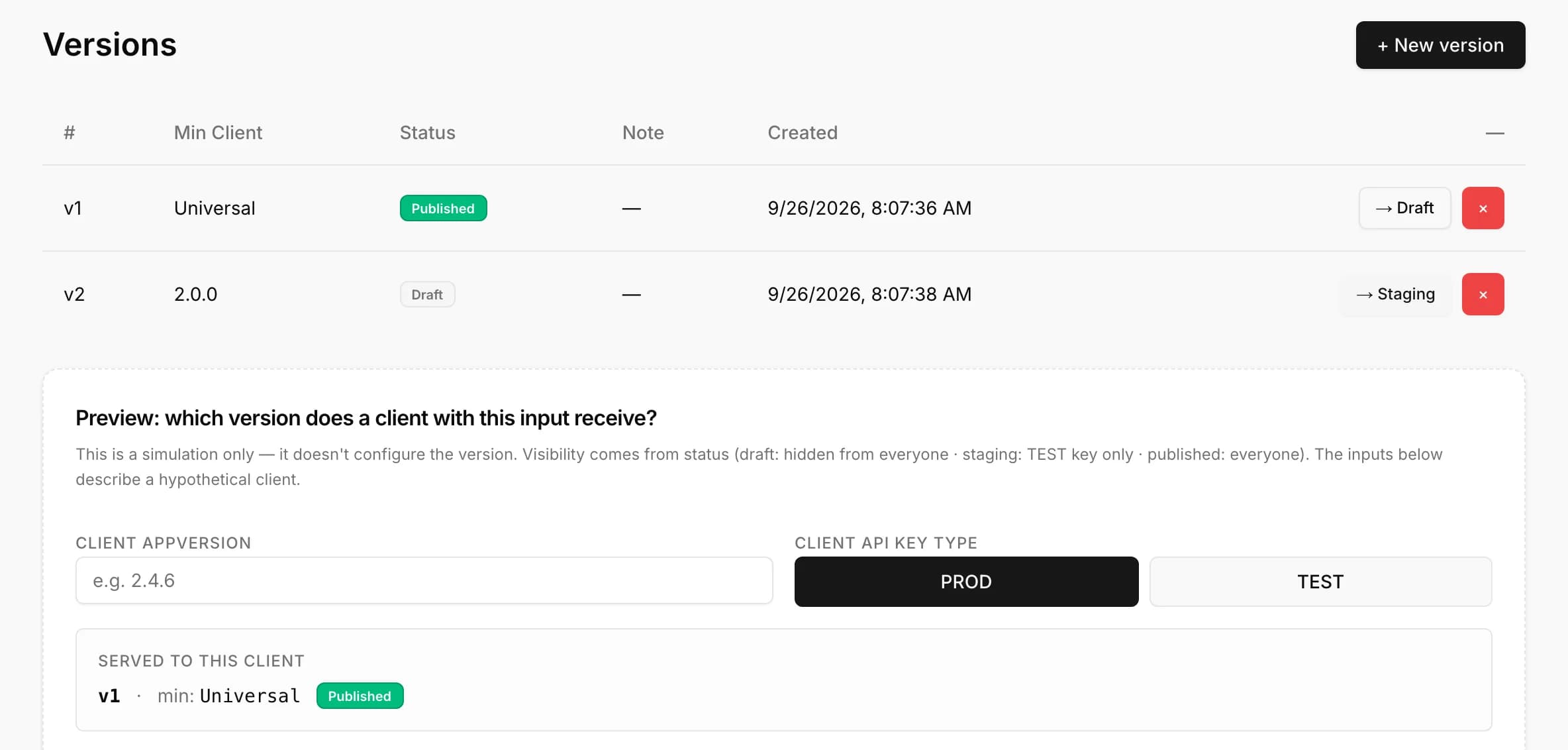
You can delete a version, except the only published one — deleting is blocked there, though you can still demote it to Draft or Staging first (demoting is allowed; it’s specifically the delete action that requires at least one other published version to exist first).
Which version does a client get
At runtime, the resolver picks the highest Min Client version that (a) the requesting client’s app version satisfies and (b) is visible to that client’s key type — Published versions to everyone, Staging versions only to TEST keys. A client that doesn’t report a valid app version is treated fail-safe: it only matches universal versions (Min Client left empty), never a version gated to a specific app version. If no version matches, the tool is hidden from that client entirely for that request.
The Versions page includes a simulator for this exact question: enter a hypothetical client app version and API key type (PROD or TEST), and it shows which version number (if any) would be served. This is a preview only — it doesn’t change any configuration, since visibility is entirely a function of each version’s own status and Min Client value.
Delivery History
Each tool has its own Delivery History view — the Action Logs list filtered to that tool’s email and webhook deliveries. Open it from the tool’s edit screen. See the Action Logs page for the full filter, search, and detail-drawer reference; everything there applies here, scoped to one tool.