Skip to Content
    Qafka
    CTRL K
    CTRL K
    • Introduction
      • Quick Start (React Native)
      • Quick Start (Website)
      • React Native Configuration
      • Overview
      • npm & React
      • Options Reference
      • WordPress
      • React Native Widget
      • Headless SDK
      • Theming
      • Context
      • Navigation
      • External Navigation
      • Handling Tools
      • Voice Chat
      • Sub-Projects
      • Error Handling
      • CLI
      • Dashboard
      • Onboarding
      • Invitations
      • Billing
      • Usage
      • Settings
      • Sign-in & Account
      • Dashboard Assistant
        • Project
        • Overview
        • Conversations
        • Chat Test
        • Sub-Projects
        • Analysis
        • Unanswered Questions
        • Insights
        • Configuration
        • AI Behavior
        • Members
        • Documents
          • Overview
          • Create with AI
          • Versions
          • Response Channel
        • Action Logs
        • Navigation Rules
        • External Destinations
        • Chat Theme
        • PII Masking
        • Websites
        • Mobile Apps
        • API Keys
        • Project Settings
      • API Key Security
    • Introduction
      • Quick Start (React Native)
      • Quick Start (Website)
      • React Native Configuration
      • Overview
      • npm & React
      • Options Reference
      • WordPress
      • React Native Widget
      • Headless SDK
      • Theming
      • Context
      • Navigation
      • External Navigation
      • Handling Tools
      • Voice Chat
      • Sub-Projects
      • Error Handling
      • CLI
      • Dashboard
      • Onboarding
      • Invitations
      • Billing
      • Usage
      • Settings
      • Sign-in & Account
      • Dashboard Assistant
        • Project
        • Overview
        • Conversations
        • Chat Test
        • Sub-Projects
        • Analysis
        • Unanswered Questions
        • Insights
        • Configuration
        • AI Behavior
        • Members
        • Documents
          • Overview
          • Create with AI
          • Versions
          • Response Channel
        • Action Logs
        • Navigation Rules
        • External Destinations
        • Chat Theme
        • PII Masking
        • Websites
        • Mobile Apps
        • API Keys
        • Project Settings
      • API Key Security

    On This Page

    • Website
    • Web app
    • Mobile app
    • After connecting
    Question? Give us feedback Edit this page 
    DashboardOnboarding

    Onboarding

    “Where do you want to add your AI agent?” — the dashboard home shows three entry points for connecting Qafka to something you own. Each one creates a project and an API key, then walks you through installing the widget and checking it’s actually receiving traffic.

    An entry can be locked (plan doesn’t cover it, you’re at your project limit, or your account can’t create projects of its own) — the card still shows what it’s for, with a link to upgrade or to check your invitations instead of hiding the option.
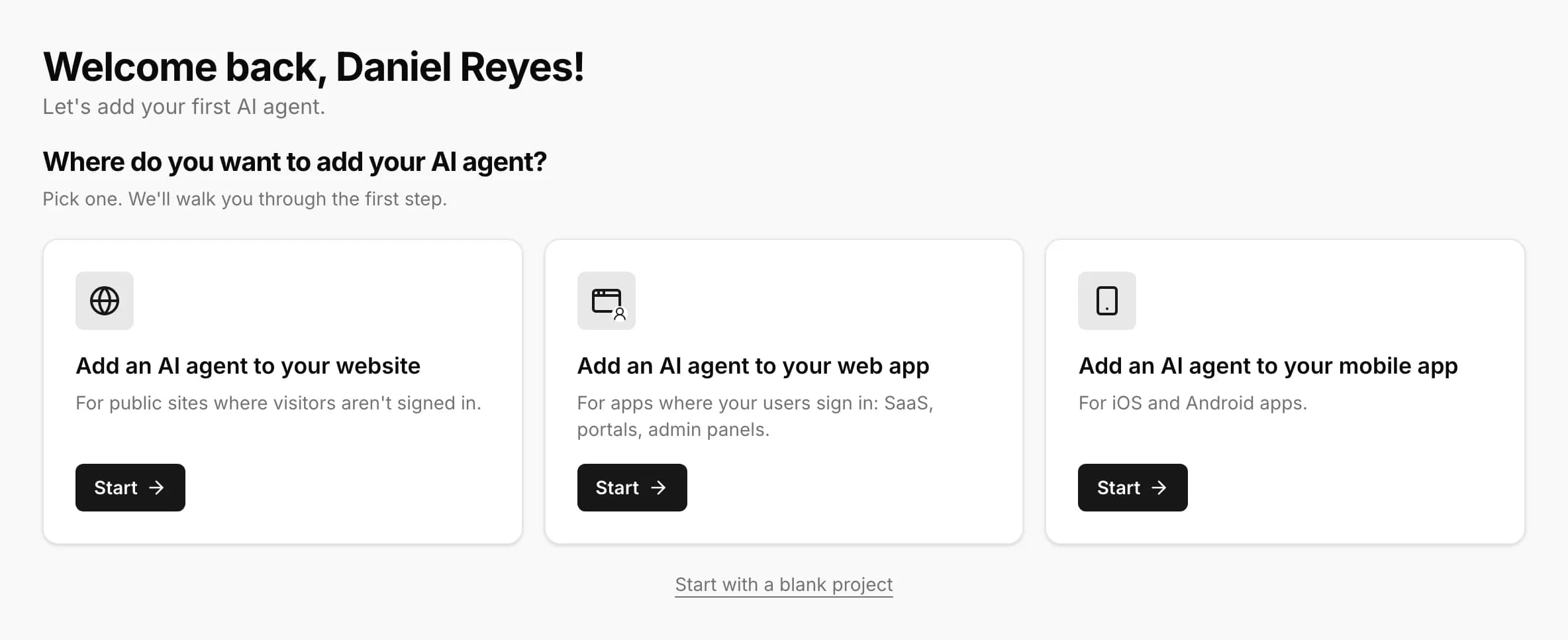
    Dashboard home with the three entry points: website, web app and mobile app

    Website

    For public sites where visitors aren’t signed in. Enter your site’s URL and confirm you own it (or are authorized to add an assistant to it); Qafka creates a project, a Web key restricted to your domain, and a copy-paste <script> snippet, then reads your site’s public pages in the background to seed a starting knowledge base, navigation rules, and branding.
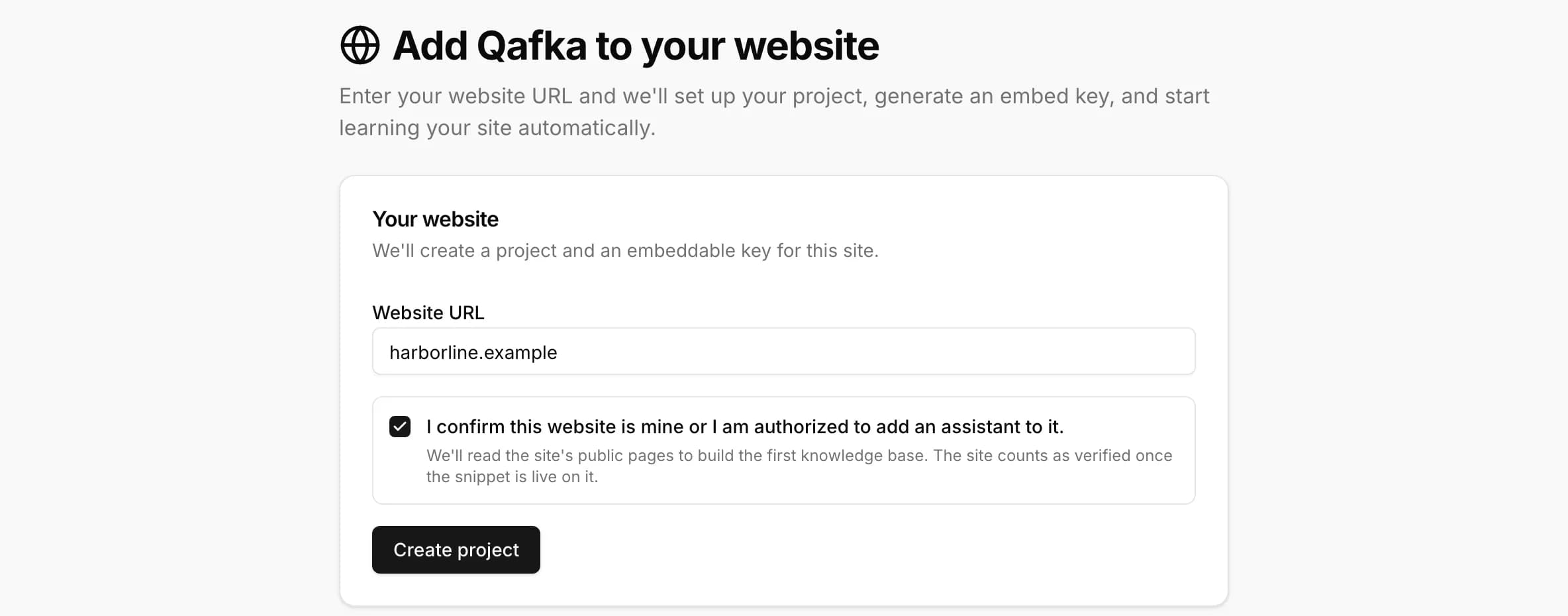
    Website onboarding: website URL and ownership confirmation

    This is the same flow documented in full at Quick Start (Website) — follow that page for the install steps.

    Web app

    For apps where your users sign in — SaaS, portals, admin panels. Give it a name and the address it runs on (e.g. app.example.com, or http://localhost:3000 for development); the install step then shows the @qafka/web package and the exact component snippet for your key. See npm & React for the package itself — it isn’t on the public npm registry yet.

    Mobile app

    For iOS and Android apps built with React Native. Give it a name, pick iOS and/or Android, and enter the bundle ID / package name for the platforms you picked. The dashboard’s own “Install the SDK” step is out of date — use Quick Start (React Native) for the correct install and props (projectId and endUserId on <Qafka />) instead of what the dashboard shows.

    Before going live on iOS or Android, add your iOS Team ID and Android signing certificate on the project’s Mobile Apps page — production builds then authenticate via device attestation, see API Key Security. A TEST key (shown once) is only meant for development.

    After connecting

    Every entry ends on a Check it’s working step. For a website, add the snippet to your site and open the site once — the dashboard picks up that first visit through the snippet. For a web or mobile app, open it and send the assistant a message; the dashboard confirms it saw the request (and, for signed-in apps, that it received an identified user). You can always come back to this later — closing the page doesn’t undo anything you’ve already created.

    Last updated on October 1, 2026
    DashboardInvitations

    © 2026 Qafka Labs OÜ